PLC LADDER SIMULATOR 2/PC
  • HOME
  • DOWNLOADS
  • F.Q.A.
  • MORE APPS
  • app-ads

PLC LADDER SIMULATOR 2
Picture
PLC Ladder Simulator 2
Picture
PLC Ladder Simulator 2 is a simulator for the Android operating system with input and output objects that simulate the I/O ports of a real PLC.  You can use PLC Ladder Simulator to create ladder-logic diagrams using components from the standard set used in these diagrams.

PLC Ladder Simulator 2 is the successor of PLC Ladder Simulator, this version comes with big changes like a better and more friendly user interface UI and user experience UX, better use of sub-rungs, more functions blocks, unlimited save files and the possibility to export them to other devices that run the app, and much more.

PLC LADDER SIMULATOR PC

Picture
PLC Ladder Simulator PC
PLC Ladder Simulator PC is based on PLC LS 2 with a UI that is more friendly for PC users. This edition is available for Windows and Linux OS.

One of the big advantages of this edition is that is possible to visualize more rungs on the screen, making a more comfortable use of the app for big designs.

On the aspects of how to use the app the only big difference of this edition in compare to PLC LS 2, is that in order to delete an object the user must double click the desired object with the right button of the mouse, all the other functions and mechanics are the same.

The app can be downloaded from here.

FUNCTIONS BLOCKS

Any ladder simulator or editor comes with more functions than only the basic rungs with contacts and coils, this version is not the exception it comes with 59 functions (17 functions are locked).​
plc_ladder_simulator_2_functions_blocks.pdf
File Size: 1196 kb
File Type: pdf
Download File

FILES

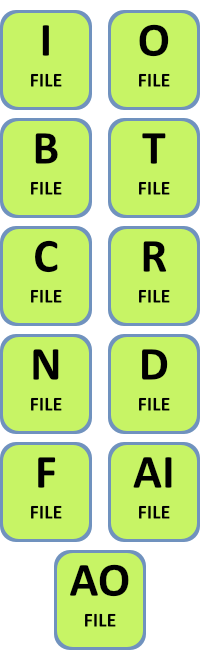
​All data are stored in files according to their type, each file is composed of words (16-bits).
Picture
  • INPUT (I): Stores the state of the digital input pins. 
    • Size: 2 words (32 bits)
  • OUTPUT (O): Stores the state for the digital output pins.
    • Size: 2 words (32 bits)
  • BINARY (B): Stores bits and words.
    • Size: 130 words (2080 bits)
  • TIMER (T): Required for timers.
    • Size: 50 timers.
  • COUNTER (C): Required for counters.
    • Size: 30 counters.
  • CONTROL (R): Required for some functions blocks (BSL, BSR, ROL, ROR, SQC, SQL,  SQO).
    • Size: 30 functions blocks.
  • INT (N): Stores 16-bit signed decimal numbers (-32768 to 32767).
    • Size: 50 words.
  • DINT (D): Stores 32-bit signed decimal numbers (-2147483648 to 2147483647).
    • Size: 50 double words.
  • REAL (F): Stores 32-bit floating-point numbers.
    • Size: 50 float numbers.
  • ANALOG INPUT (AI): Stores the data from the analog input pins.
    • Size: 32 words.
  • ANALOG OUTPUT (AO): Stores the data for the analog output pins.
    • Size: 32 words.
  • SYSTEM (S): Stores the time variables.

SUBROUTINES AND EXTERNAL INTERRUPTS

Picture
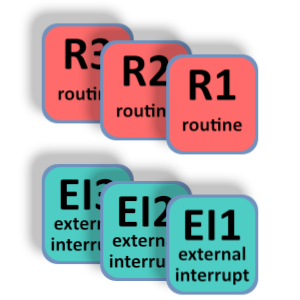
A subroutine is a sequence of ladders and functions blocks that can be executed by calling the JSR (Jump to Subroutine) function. A subroutine can perform a specific task given by the programmer. 
An external interrupt works just like to subroutine but it's only executed when an external signal (input pin) changes it state or keep a trigger value.
​When an external interrupt is enabled the input pin changes from red to green in the input bar. The interrupts are linked with the 12 LSB (least significant bits) of the I:0 word.

HOW TO USE THE APP

BLUE, RED AND GREEN PADLOCKS

Picture
Picture
Picture
Unlocking the blue and red padlocks gives more content in the app.
Blue padlock: Unlock 17 functions blocks and 14 routines.
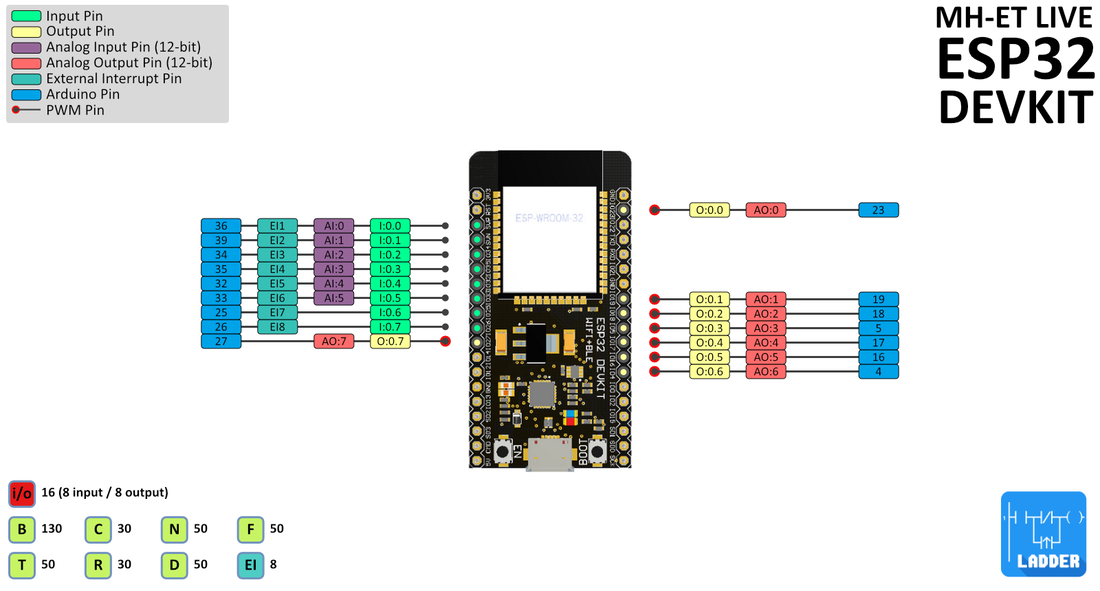
Red padlock: Unlocks the next boards for the code generation: Arduino Mega, Arduino Due and MH-ET LIVE ESP32 Devkit.
Green padlock: Unlocks serial code generator for PLC-LS PC for Windows and Linux.
All the Ads are disabled if one of the padlocks are unlocked.
The padlocks are only one time purchase.
IMPORTANT: No refunds will be made beyond 72 hours after the purchase.

NOTE FROM GOOGLE PLAY REFUND POLICIES: "You can only return an app or game for a refund once. If you buy it again you will not be able to get a refund. If a refund is issued you will lose access to the item."

GENERATE CODE FOR DEVELOPMENT BOARDS

​​PLC-LS2 can create code for some Arduino development boards, once the code is generated copy it, paste it to the Arduino IDE and program your board.
​
All the generated code are stored in the "PLC2 Data\MCU Codes" folder of the Android device.

Required Arduino libraries

The following steps are not required for the Arduino UNO, NANO and LEONARDO. For the other boards are mandatory.
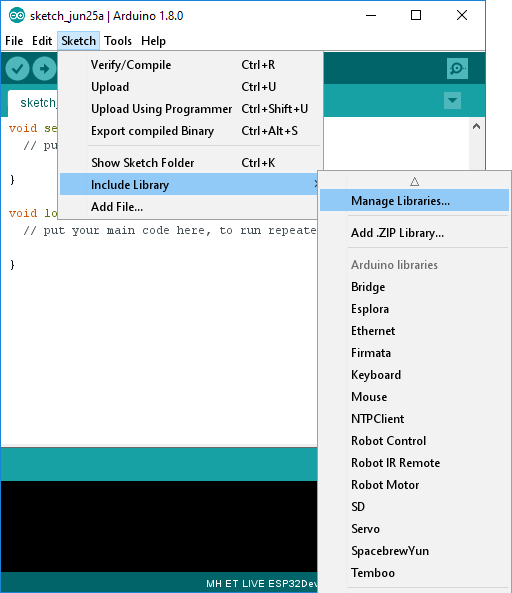
  1. Open the Arduino IDE.
  2. Open the Manage Libraries from Sketch > Include Library menu.
  3. Search and install the library "Time" by Michael Margolis.
  4. Search and install the library "DS1307RTC" by Michael Margolis.
  5. Search and install the library "Ethernet2" by Various
Picture

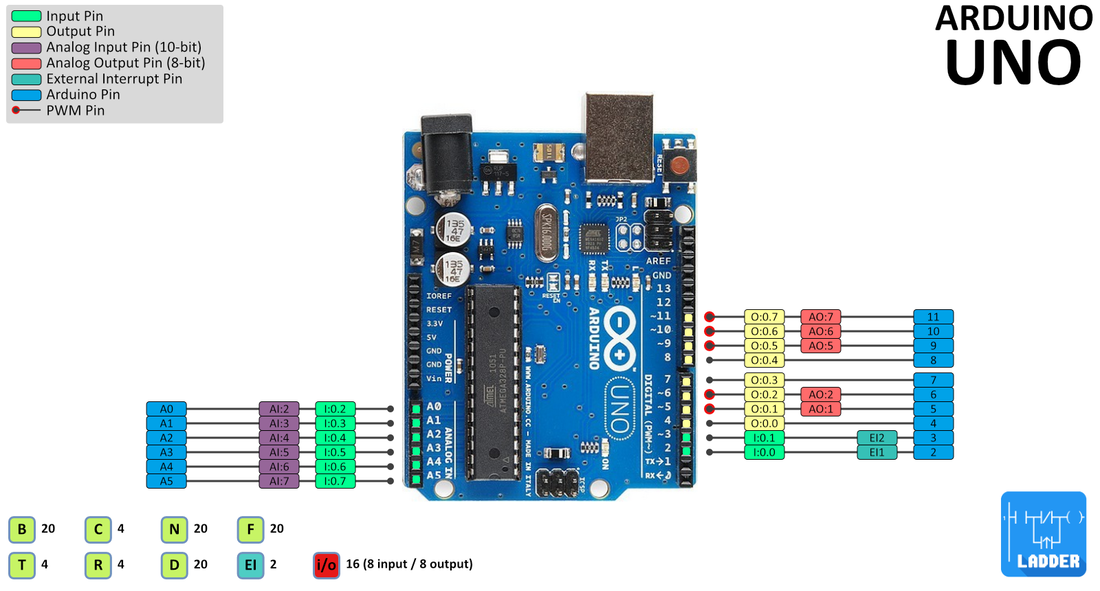
Ardunio UNO

Picture
Arduino UNO pin map

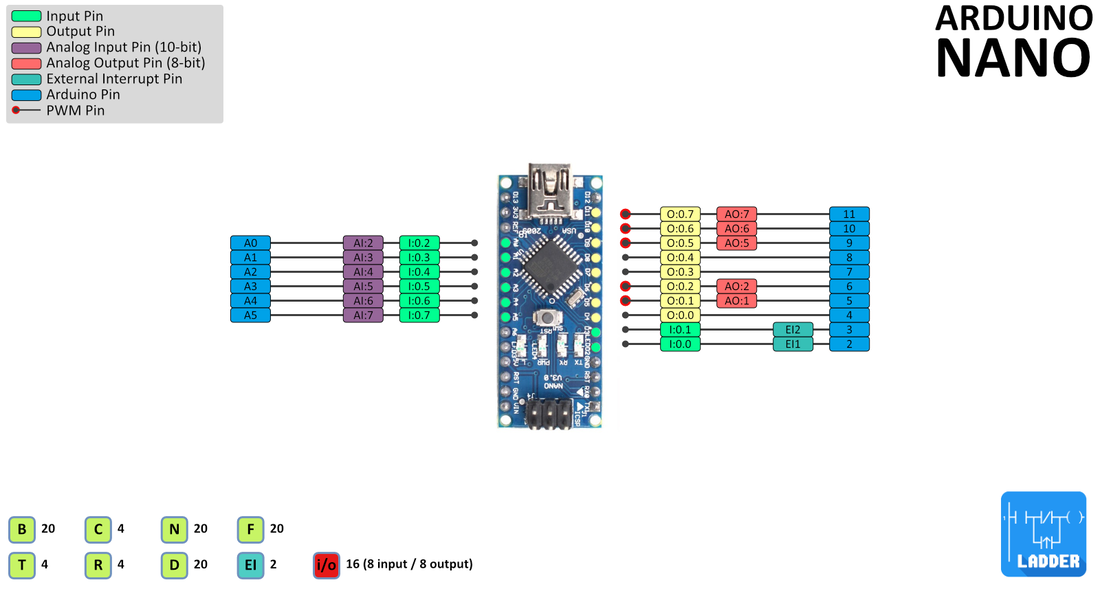
Arduino Nano

Picture
Arduino Nano pin map

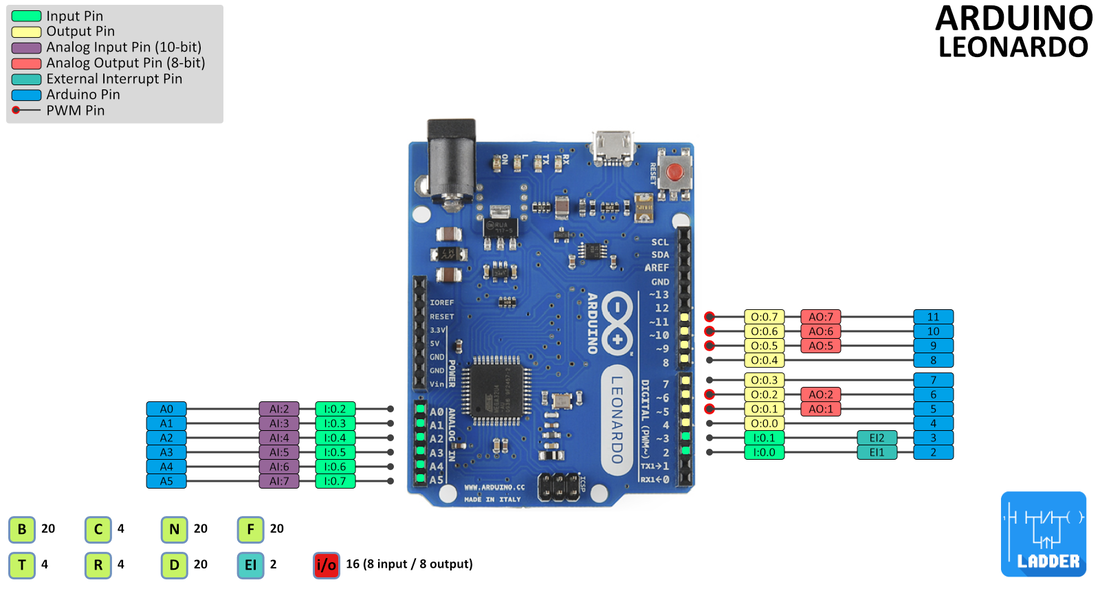
Arduino Leonardo

Picture
Arduino Leonardo pin map

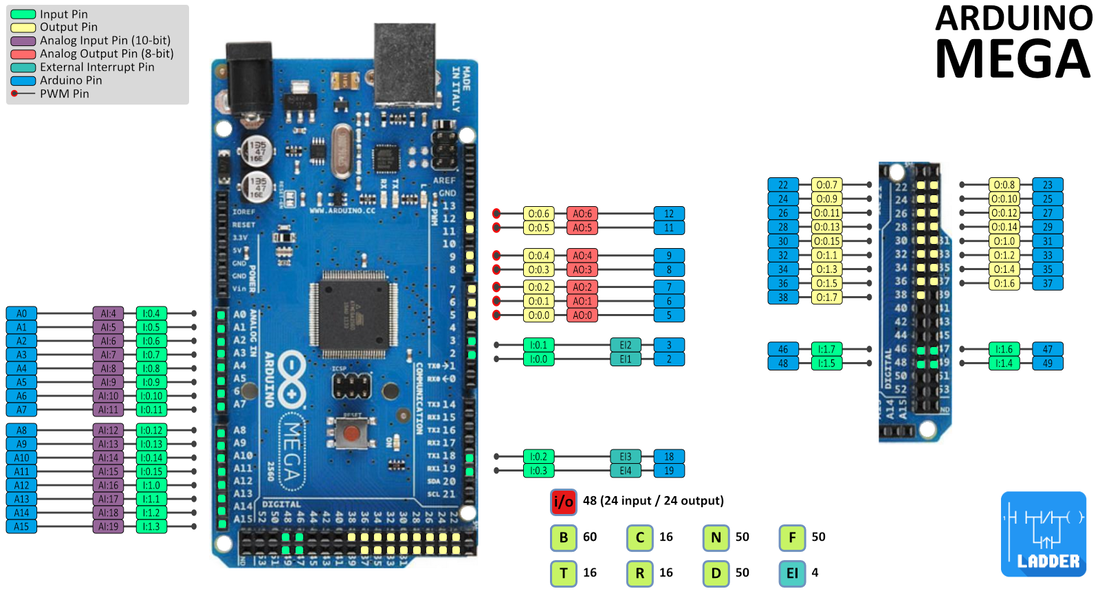
Arduino Mega

Picture
Arduino Mega pin map
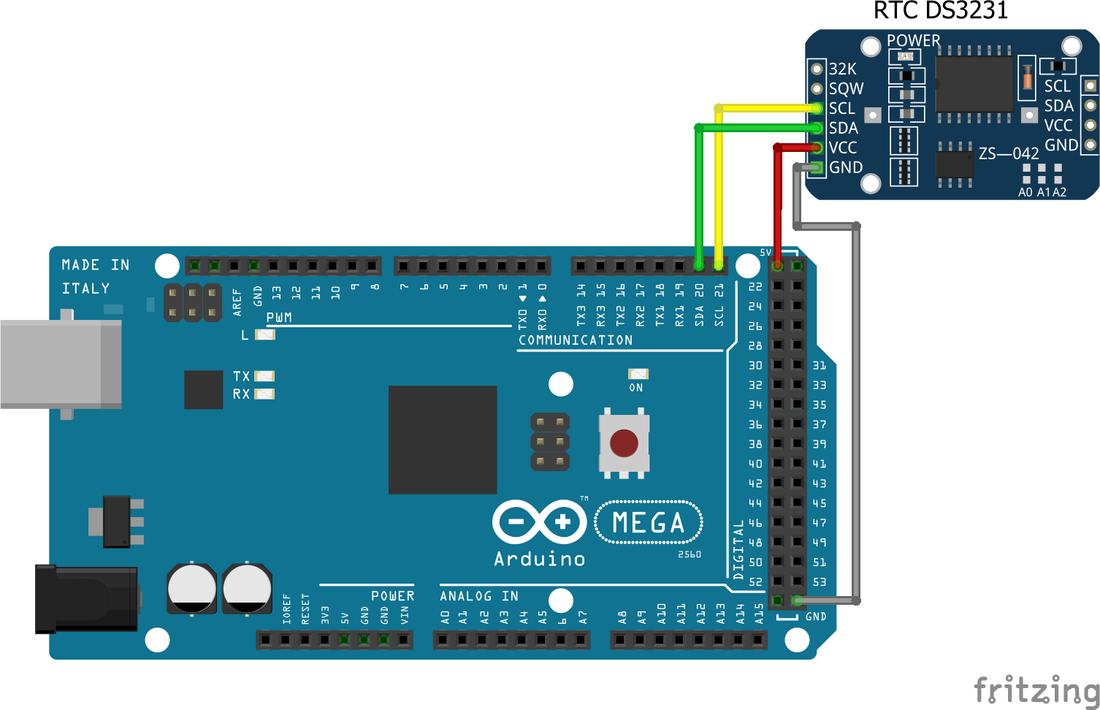
Picture
Arduino Mega with RTC module
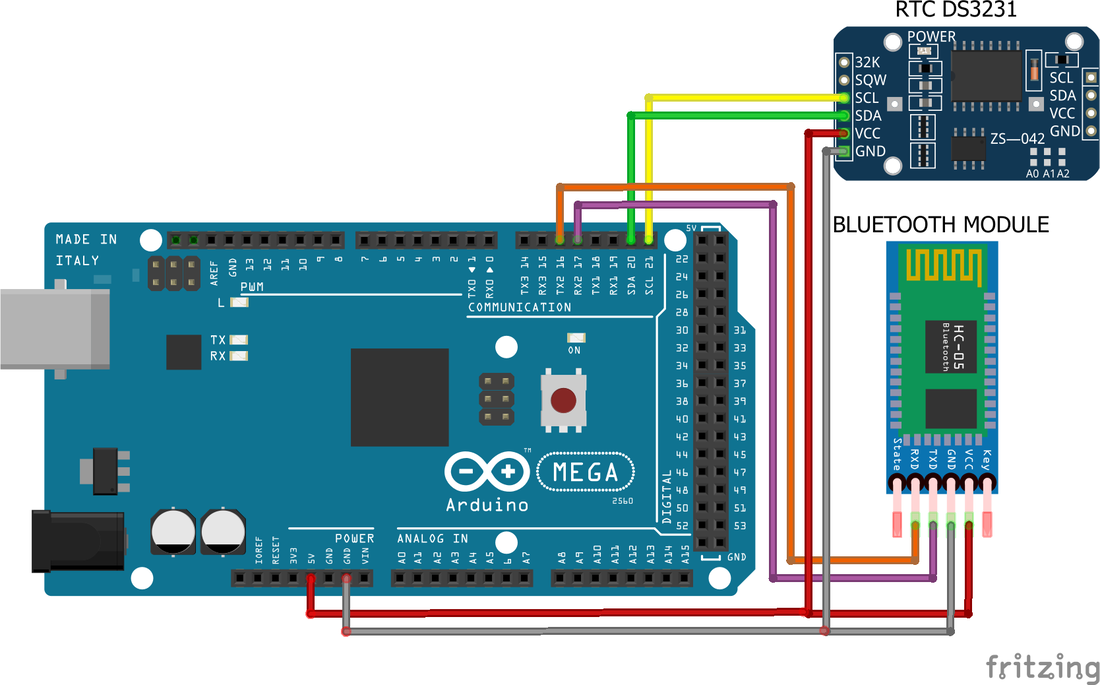
Picture
Arduino Mega for HMI Bluetooth connection
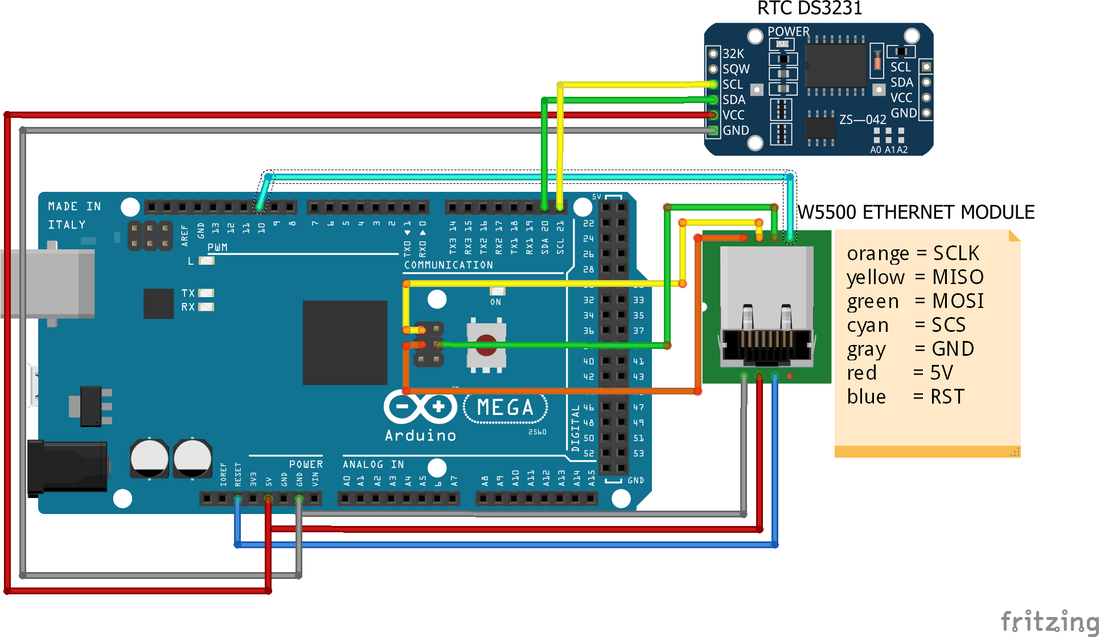
Picture
Arduino Mega for HMI Ethernet connection

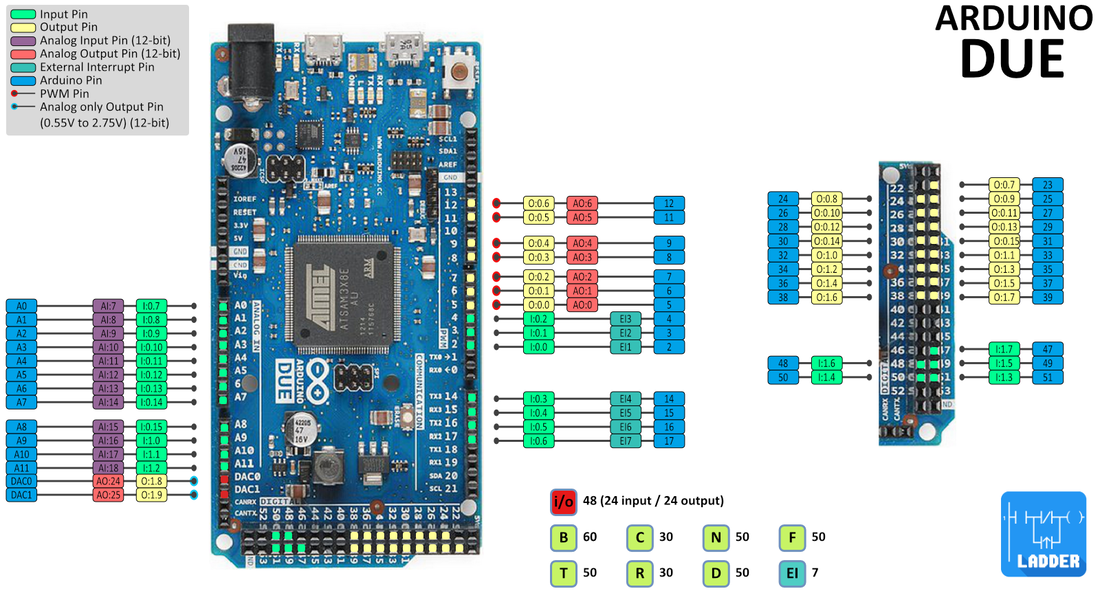
Arduino Due

The Arduino Due it's not installed by default in the Arduino IDE, here​ you can find a guide on how to install it in the Arduino IDE.
Warning: Unlike most Arduino boards, the Arduino Due board runs at 3.3V. The maximum voltage that the I/O pins can tolerate is 3.3V. Applying voltages higher than 3.3V to any I/O pin could damage the board.
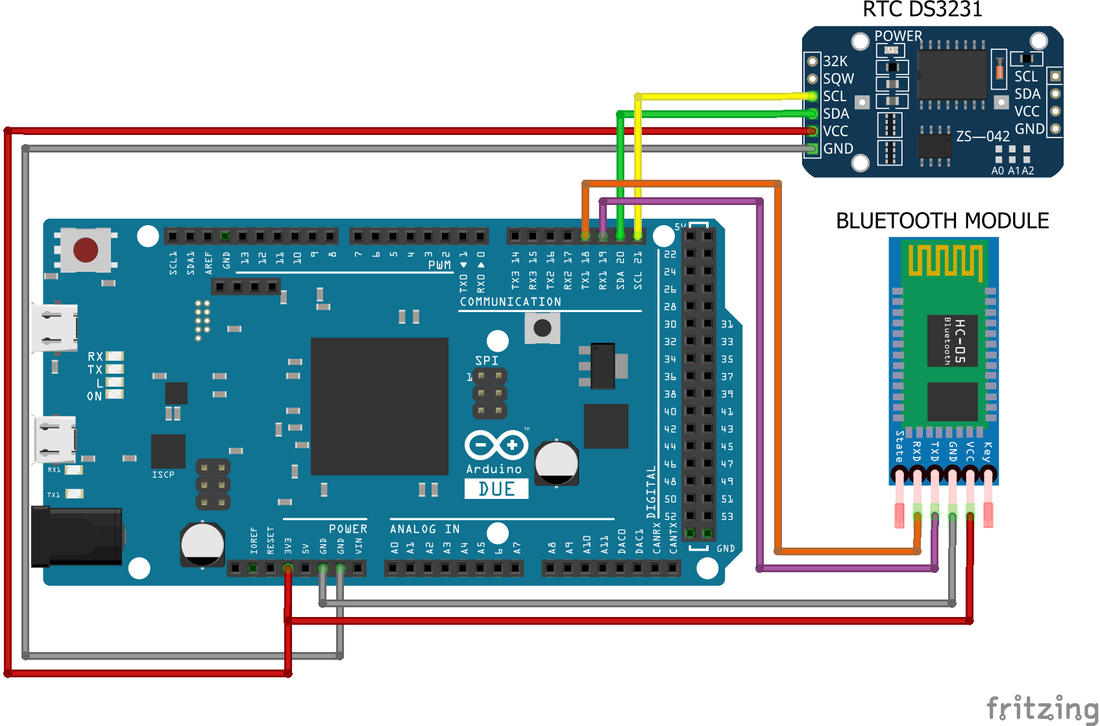
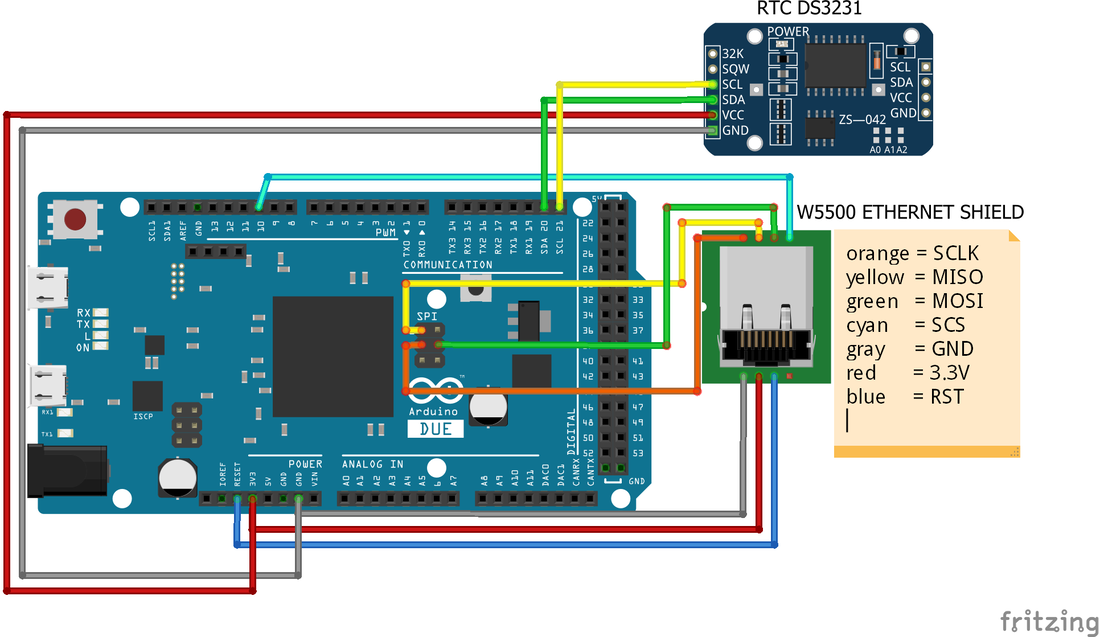
For HMI the board is compatible with Bluetooth and ETHERNET connection, but it's higher recommended to use it over ETHERNET, some Bluetooth modules make an unstable communication over time between the board and the HMI app.
Picture
Arduino Due pin map
Picture
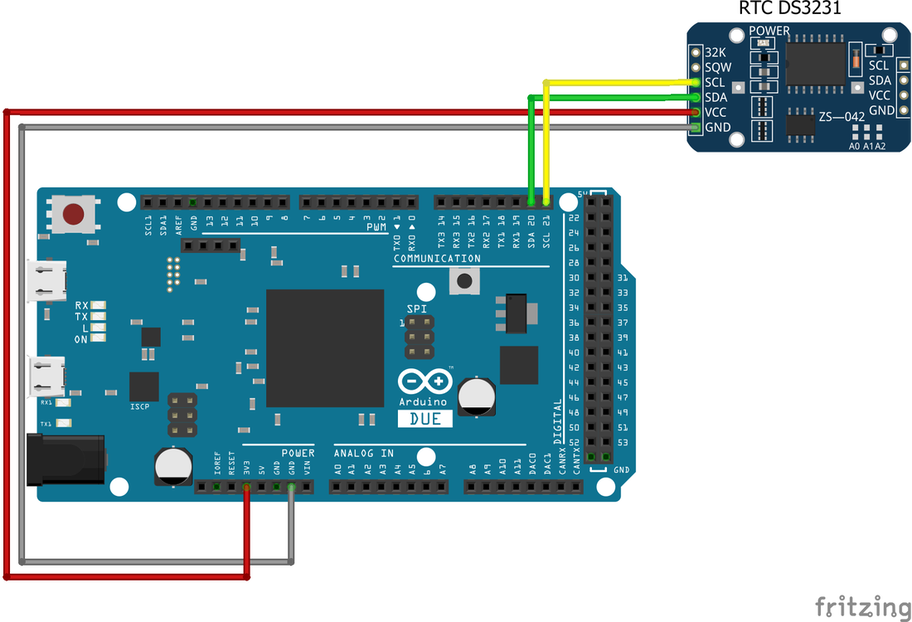
Arduino Due with RTC module
Picture
Arduino Due for HMI Bluetooth connection
Picture
Arduino Due for HMI Ethernet connection

MH-ET LIVE ESP32 Devkit

The ESP32 do not work by default with the Arduino IDE, here​ you can find a guide on how to install the Arduino core for the ESP32.
Warning: This board runs at 3.3V. The maximum voltage that the I/O pins can tolerate is 3.3V. Applying voltages higher than 3.3V to any I/O pin could damage the board.
For HMI the board is only compatible over WiFi connection (Ethernet option in HMI app).
Picture
MH-ET LIVE ESP32 Devkit pin map
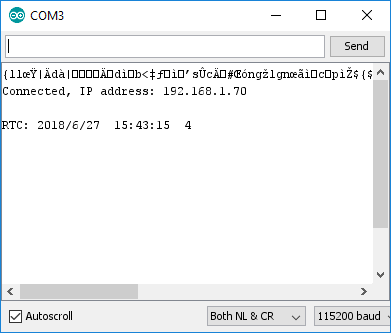
To determine the IP address assigned to the ESP32, connect the board to the PC, open the Arduino IDE, select the serial port of the board, open the "Serial monitor", set it at 115200 bauds and reset the board. The assigned IP address will be displayed.
Picture

Important points when using a Bluetooth module

  • The compatible Bluetooth modules are the HC-05 and the HC-06.
  • The Bluetooth module must be configured to work at a baud rate of 9600.​

Important points when using a Ethernet module

  • The compatible Ethernet module any module with the W5500 chip.
  • The port number for the LAN connection is 23.

RTC (Real Time Clock)

The RTC is a clock that keeps track of the current time, this allows to execute certain actions in the PLC when some variables match a certain date or time. The compatible RTC module are the DS1307, DS1337 and DS3231.

The DS1307 module only works with 5 volts. The DS1337 and DS3231 can work with 3.3 and 5 volts. It's recommended to use the DS3231 due it can work with all the compatible boards and it have more accuracy in comparison to the other modules.

The RTC feature is enabled by default for the ET LIVE ESP32 Devkit. This board has a built-in RTC that is updated every time the board is power-up, but they required to be connected to the internet to do so. For the other boards, the RTC must update it with the "setTime.ino" sketch, this must be done before uploading the ladder code to the Arduino board.

Set your time zone GMT in the "clockGMT" variable before uploading the ladder code to the Arduino board, a list of zones and GMT values are available inside the generated code.

settime.ino
File Size: 1 kb
File Type: ino
Download File

Picture

HMI Controller for Arduino app

Picture
The HMI Controller for Arduino is an application for the Android OS that allows you to connect your Arduino board with your Android device in an easy way, it can be connected over Bluetooth or LAN (Local Area Network).

Make your own customizable HMI in the app without the need of a computer, you can select from eight different objects (widgets): button, switch, led, display 7-segments, numeric display, bar indicator, slider and graph.

PLC-LS2 is compatible with the HMI Controller for Arduino app, this is the best complement for you PLC Arduino projects.

For more information on how to use HMI Controller for Arduino go to the main page​ of the app.

Important: The port number for the LAN connection is 23
The relation between the HMI widgets and the PLC-LS2 files are:
  • Button: .......................[O, B] [output, binary]
  • Switch: .......................[O, B] [output, binary]
  • Slider: .........................[N, D, F] [INT, DINT, REAL]
  • Led: .............................[I, O, B] [input, output, binary]
  • Display 7 segments: .[N, D, F] [INT, DINT, REAL]
  • Numeric Display: ......[N, D, F] [INT, DINT, REAL]
  • Bar Indicator: ............[N, D, F] [INT, DINT, REAL]
  • Graph: .........................[N, D, F] [INT, DINT, REAL]

​The T, C, R, AI, AO, and S files do not work (not synchronized) with the HMI app.
When using the HMI app in "PLC Ladder 2 App Mode" the user doesn't need to use any of the HMI app commands in order to manage the communication. the Arduino code with HMI enabled is in charge of the synchronization and management of the communication.

After the generated code is uploaded to the Arduino board, power on the Arduino board, open the HMI app, select "PLC Ladder 2 App Mode", select the connection, after the "SYNCHRONIZED" window is pop-up, close it and add widgets according to the desired design.

HMI Controller for Arduino L (lite version) is not compatible with PLC-LS2.

Picture

DROP US A LINE

Contact me for any doubt or advice about the app, I'll be glad to reply to you.​

email

[email protected]
[email protected]

​
app-ads.txt
File Size: 0 kb
File Type: txt
Download File

Picture
© 2019 Sergio Daniel Castañeda N . All rights reserved. ​    |    Privacy policy
Powered by Create your own unique website with customizable templates.
  • HOME
  • DOWNLOADS
  • F.Q.A.
  • MORE APPS
  • app-ads